Sample No. 0211
Free xTool Studio Guide Helps O1 Omni Users Find Every Tool
A free, seven-page reference maps xTool Studio’s O1 Omni UV flatbed tools and settings, with a video walkthrough for trickier controls.

xTool Studio changes its toolbars and panels depending on the selected machine and the item on the canvas. For O1 Omni owners working in UV flatbed mode, a seven-page printable guide offers a quick way to identify the controls on screen, including settings that are easy to miss.
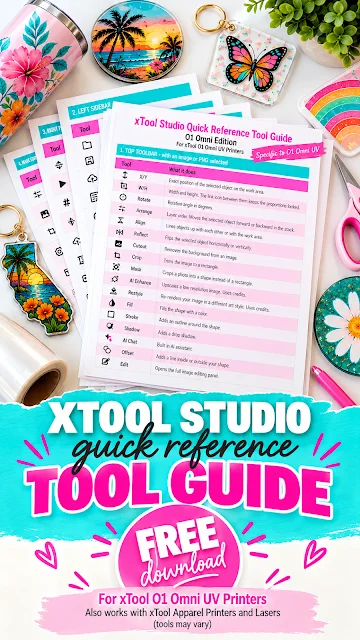
The guide is arranged to match xTool Studio’s interface. It names each tool and gives a brief description, helping makers connect a button’s location with its purpose as they work. Keep the pages beside the computer or open them on a second screen for quick reference while designing and preparing a print.
What the O1 Omni guide covers
The reference includes the top toolbar in two situations: when an image is selected and when text is selected. It also covers the left sidebar, the image edit panel, Applications tools, print settings in every right-side panel, and the bottom bar. That scope can be useful when a control seems to disappear after changing selections or moving between parts of the workspace.
Machine view matters, too. The guide is for the xTool O1 Omni in UV flatbed mode. Some tools differ when xTool Studio is set up for a laser or the xTool Apparel Printer, so the guide may not match every screen in those modes. Check that the selected machine and mode are the ones covered before using it as a button-by-button reference.
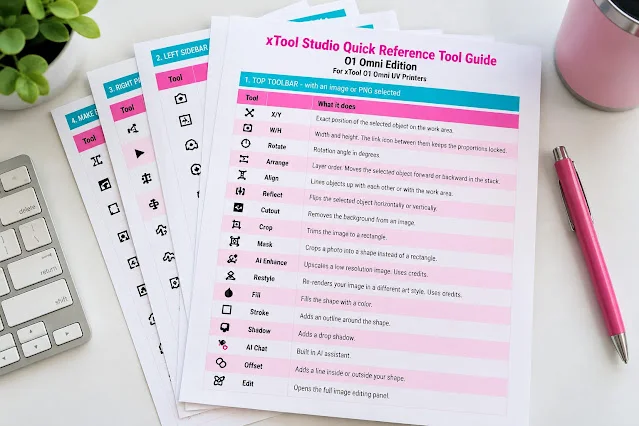
The guide is free and seven pages long. It’s designed as a lookup sheet rather than a full lesson: each entry tells you what a tool is, so you can find the right control without scanning every panel from scratch.
Where the controls can trip you up
Knowing a control’s name doesn’t always explain what will happen when you use it. The source points to two separate mirror settings in xTool Studio. One flips an individual element; the other flips the whole page. Their results also appear in different places: one is visible on the canvas, while the other appears only in preview. If both are enabled, their flips cancel each other out.
That behavior makes it especially helpful to check both the selected object and the preview before printing. A design can look one way in the canvas and behave differently in preview when a page-level setting is involved. If the orientation seems wrong, inspect the two mirror controls separately rather than toggling settings at random.
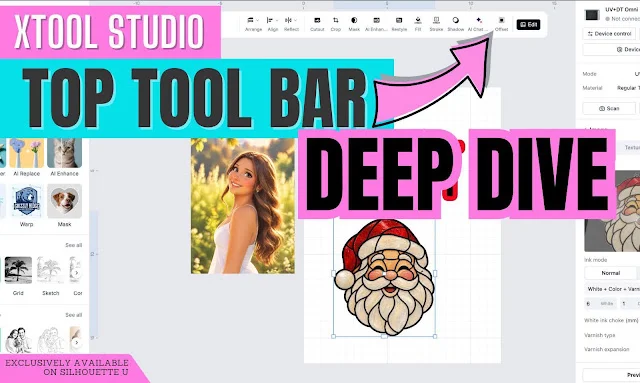
The source also flags a Shadow setting that can make a tool appear broken, plus an Offset technique for creating sticker borders and bleeds. A large offset can leave small islands behind, so the video walkthrough explains how to clean them up. It also covers which AI tools use credits and suggests alternatives. The source doesn’t name those tools or alternatives in the guide description, so the video is where makers can learn those specifics.
Pair the reference with a walkthrough
For a closer look at how tools work together, the source points to “xTool Studio Top Toolbar Deep Dive: Every Tool Explained.” This lesson covers the top toolbar and demonstrates the mirror settings, Shadow, Offset cleanup, and AI credit considerations. It’s part two of a four-part xTool Studio Deep Dive series, and the source says viewers can preview it before becoming a member.
Use the printable guide when you need to identify a control, then turn to the walkthrough when you need to understand how a setting affects the design or works alongside another tool. That combination gives O1 Omni users both a fast screen reference and examples for decisions that can change what appears in the final preview.
Get the free xTool Studio tool guide and print it or keep it open as you work. The source asks readers to share the guide by linking to its page rather than redistributing the resource itself.
For the button-by-button video, visit xTool Studio Top Toolbar Deep Dive: Every Tool Explained.